
Sauter au menu principal
Contenu
Le logiciel« Car Dock Mode » ajoute un niveau de contrôle optionel à votre iPhone qui vous permet d’écouter de la musique, d’appeler et d’utiliser Mapping simplement et en toute sécurité dans votre voiture.
Car Dock Mode Premium vous permet d’utiliser les fonctions supplémentaires suivantes:
Pour que vous puissiez utiliser votre iPhone en tute securité et d’une façon confortable en voiture il est recommendé d’utiliser Dension Car Dock for iPhone. Pour plus d’informations visitez s’il vous plait http://www.cardockforiphone.com/
Vous pouvez naviguer dans une liste (catégories, musiques, annuaire téléphonique, etc.) en glissant votre doigt sur l’écran. Durant le défilement l’en-tête et le footer disparaissent. Quand vous arretez de glisser votre doigt et vous ne touchez plus l’écran l’en-tête et le footer réapparaissent.
Certaines listes disposent d’un index le long de leur côté droit. Touchez une lettre pour passer directement aux éléments commençant par la lettre en question. Faites glisser votre doigt pour faire rapidement défiler la liste.
Pour afficher le program iPod actuel vous pouvez aussi toucher la séction information.
Bitrate: bitrate disponible et actuel de la station séléctionnée
Info:
Vous pouvez supprimer des contacts de la liste de favoris de la Car Dock Mode en les glissant vers la gauche. (Cela n’a aucun effet sur la propre liste de favoris de l’iPhone.)
Vous pouvez supprimer des contacts de la liste des appels récents de la Car Dock Mode en les glissant vers la gauche. (Cela n’a aucun effet sur la propre liste des appels récents de l’iPhone.)
En appuyant sur l’écran au milieu en Mode plan vous pouvez changer entre le mode graphique et le mode adresse.
Info
Si la fonction ’sauvegarde automatique’ est activée dans le Menu de configuration et vous utilisez le Dension Car Dock for iPhone votre position va être enregistré à chaque fois que vous sortez l’iPhone du Car Dock. (La position qui a été enregistrée précédemment va être supprimé.)
You can learn more about the Dension Car Dock for iPhone by tapping the ’Car Dock for iPhone’ button.
If your Dension Car Dock for iPhone includes an FM transmitter, you can
Link to the webpage of Dension, the developer of Car Dock Mode and manufacturer of iPhone car kits.
Link to the support team of Car Dock Mode.
If you have a TuneIn account, please enter your username and password. This activates the ’Favorites’ function of the internet radio player and synchronizes the Car Dock Mode with your existing TuneIn settings. In case of having no TuneIn account, you can create it on www.tunein.com for free.
Switch button sounds on/off
Switch button vibration on/off
Switch Auto Run on/off. If switched on, the Car Dock Mode will be activated automatically when inserting the iPhone into the Dension Car Dock for iPhone.
GPS position auto save on/off. If switched on, the Car Dock Mode will save your GPS position automatically when removing the iPhone from the Dension Car Dock for iPhone.
Setup the menu colors, either all to the same, or one by one by tapping on the colors. The desired color can be set by moving the cursor, or by giving RGB codes. The factory setting can be restored by tapping 'default colors'
Info:
If you already have a Dension Car Dock for iPhone, you can check if it is up to date:
Set up backlight by usint the slider, or by tapping Day/Night buttons.
Software version of the Car Dock Mode.
Car Dock Mode Premium gives you extra features compared to the free Car Dock Mode:
To update Car Dock Mode to Car Dock Mode Premium, please follow the process below:
The Dension Car Dock for iPhone provides windscreen and dash mounting, charging, car audio connectivity and handsfree functionality to your iPhone.
The Dension Car Dock for iPhone can be used both with and without the Car Dock Mode app. However, please note that some of the features (like setup of FM transmitter frequency) require an installed Car Dock Mode app on your iPhone.
To see, how you can mount the Car Dock onto your dashboard or windscreen, please check the Quick Start Guide in the package of the Car Dock.
In the package of the Car Dock you can find a cigar lighter charging adapter, a power cable and an audio cable.
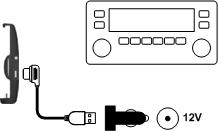
If your Dension Car Dock for iPhone includes an FM transmitter, and you wish to use FM audio connection to your car, you will need only the cigar lighter charging adapter and the power cable. Please connect them as shown on the figure:
If you wish to use AUX audio connection to your car, then you will need the audio cable too. Please connect it as shown on the figure:
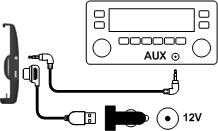
If your car has an AUX input, it is suggested to use the AUX audio connection even if your Car Dock includes an FM transmitter, as it provides better audio quality than the FM connection.
If you use a Dension Gateway in your car, it is suggested to connect the Car Dock to the Dension Gateway via the 9-pin connector. In this case you can use all functions of both the Dension Gateway and the Car Dock.
If you do not have the 'Car Dock to Gateway'; cable, you can order it at your Dension dealer, or in the Dension Webstore (http://shop.dension.com).
iPhone 3G and iPhone 3GS fits the Car Dock immediately, no rubber pads are needed.
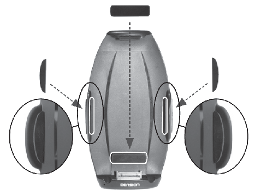
In the package of the Car Dock you can find three self-adhesive rubber pads. Before connecting an iPhone 4, please install these as shown on the picture below:
To activate the handsfree function, the iPhone needs to be paired to the Car Dock for iPhone via Bluetooth. The Bluetooth pairing can be made on the following way:
After the pairing is done, the Car Dock will automatically connect to your iPhone via Bluetooth, each time you dock it. If you remove the iPhone from the Car Dock, the Bluetooth will be automatically disconnected.
The Car Dock can work without having 12V power (cigar lighter, or Dension Gateway) connected. However, in this case you risk draining your iPhone battery quickly and the quality of the built-in FM transmitter may be lower. Therefore it is suggested to connect to 12V power supply, or Dension Gateway whenever you use the Car Dock.
If the iPhone is docked in the Car Dock, its audio output (including music, phone and app audio) is transmitted to the car. There are 3 different methods to transmit the audio to the car:
If you have a Car Dock with a built-in FM transmitter, you can activate it by docking the iPhone in the Car Dock, launching the Car Dock Mode app, entering the Settings menu and switching FM on. (See section 2.14.2)
To have the best FM transmission quality:
Please note that free frequencies are location dependent. If you move, it may be necessary to change the frequency settings to keep the good transmission quality.
If your car has an AUX input, it is suggested to use it instead of the FM, as it provides better audio quality.
Select the AUX source on your car radio to listen to your iPhone.
If the Car Dock is connected to a Dension Gateway, select the iPod source on the Gateway to get the iPhone audio.
After the iPhone is paired to the Car Dock (see section 4.1.5), they will be automatically connected via Bluetooth, each time you dock the iPhone. (For the automatic connection, the Bluetooth of the iPhone needs to be switched on before docking.)
If you remove the iPhone from the Car Dock, the Bluetooth will be automatically disconnected.
During phonecalls you will hear the incoming audio via the car speakers. For outgoing audio, the built-in microphone of the Car Dock is used.
Note: To hear the incoming audio from your car speakers, the iPhone needs to be the active audio source of your radio. In case of AUX connection select the AUX source on your car radio. In case of using FM transmitter, select the the same FM frequency on your car radio, which was set in the Car Dock Mode app.

Declaration of Conformity
Dension Audio Systems declares that the product named 'Car Dock for iPhone' complies with Radio & Telecommunication Terminal Equipment Directive (R&TTE) (1999/5/EC), the Electromagnetic Compatibility Directive (2004/108/EC) and the Low Voltage Directive (2006/95/EC) - issued by the Commission of the European Community.
The manufacturer cannot be held responsible for modifications made by the user and the consequences thereof, which may alter the conformity of the product with the CE Marking.

FCC ID: X6L IPH1CR0
FCC Compliance Statement
'Car Dock for iPhone' has been tested and found to comply with the limits for a class B digital device, pursuant to part 15 of the FCC Rules. These limits are designed to provide reasonable protection against harmful interference in a residential installation. This equipment generates, uses and can radiate radio frequency energy and if not installed and used in accordance with the instructions, may cause harmful interference to radio communications. However, there is no guarantee that interference will not occur in a particular installation. If this equipment does cause harmful interference to radio or television reception, which can be determined by turning the equipment off and on, the user is encouraged to try to correct the interference by one or more of the following measures:
The user is cautioned that changes and modifications made to the equipment without the approval of manufacturer could void the user's authority to operate this equipment.